Downloads
Set up your modue in a few minutes.
Download the modue app, plug in your deck and pick your first plugins. The app updates itself from then on.
Windows
Installer, .exe
Detected on this computer
macOS
Disk image, .dmg
Detected on this computer
Linux
Closed beta, .AppImage
Detected on this computer
TODO: installer links for Windows (.exe) and macOS (.dmg), and the page where you apply for the Linux beta.
Next steps
After you download.
- 01
Install the app
Windows: open the .exe, follow the installer, then open modue from the Start menu. macOS: open the .dmg, drag modue into Applications and open it from there. If macOS asks for permissions, allow them.
TODO: which macOS permissions the app asks for and why (for example Accessibility, for sending keystrokes).
- 02
Sign in, or skip for now
A modue account is optional. You need one only to download plugins from the Plugin Store, and you can sign in later at any time.
- 03
Plug in your modue
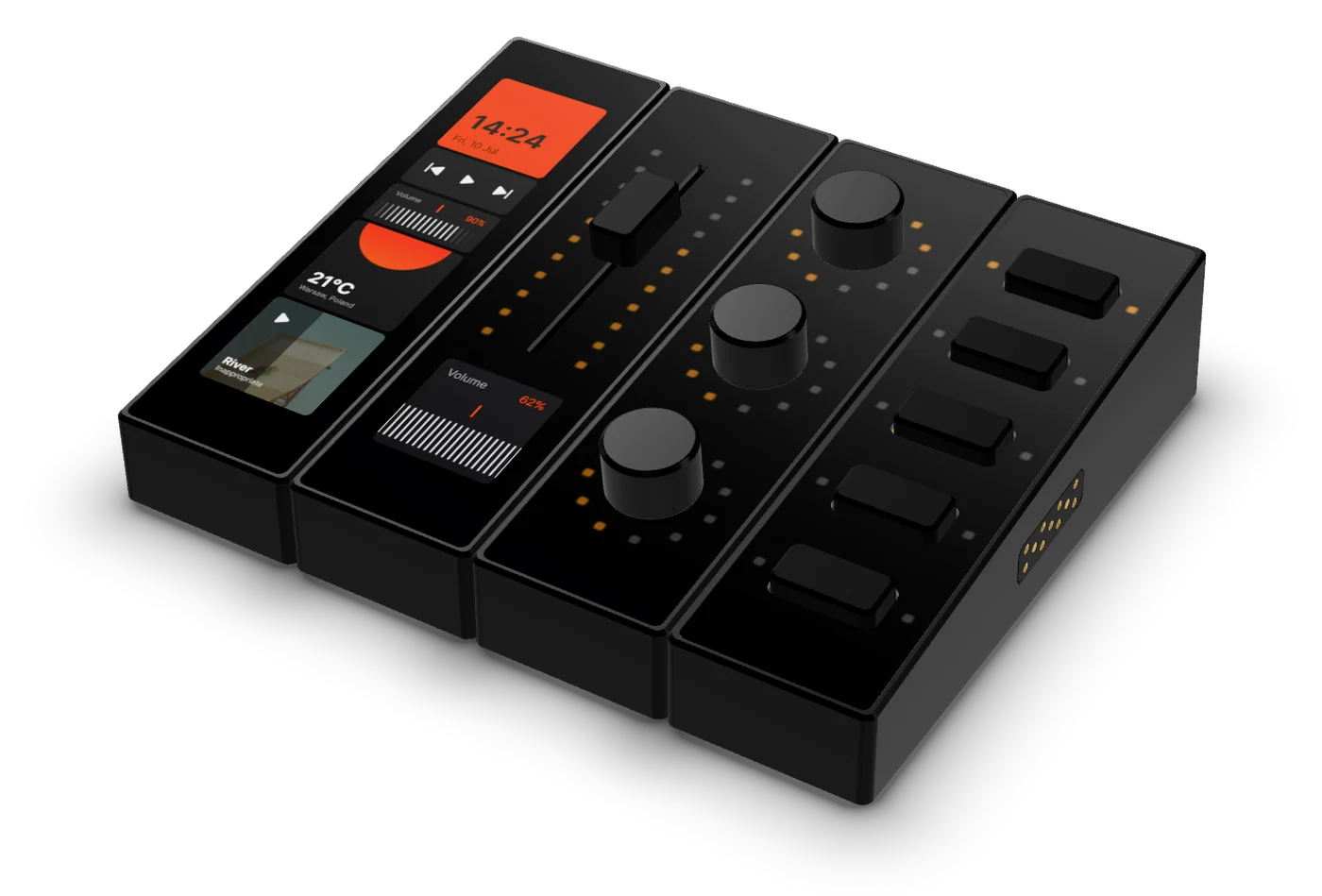
Connect the USB-C cable from the box to your One Touch, and the other end straight to your computer, ideally to a USB-C port. The app finds the One Touch and every module attached to it.
Which port should I use? - 04
Get your first plugins
Open the Plugin Store in the app, install the plugins for the apps you use and drag their widgets onto your screens.
How the Plugin Store works
Watch
Installing the modue app.
Windows, macOS and Linux, step by step.
TODO: the videos. A thumbnail first; the player loads only after a click, with no third-party cookies before consent.